
Pick Orders
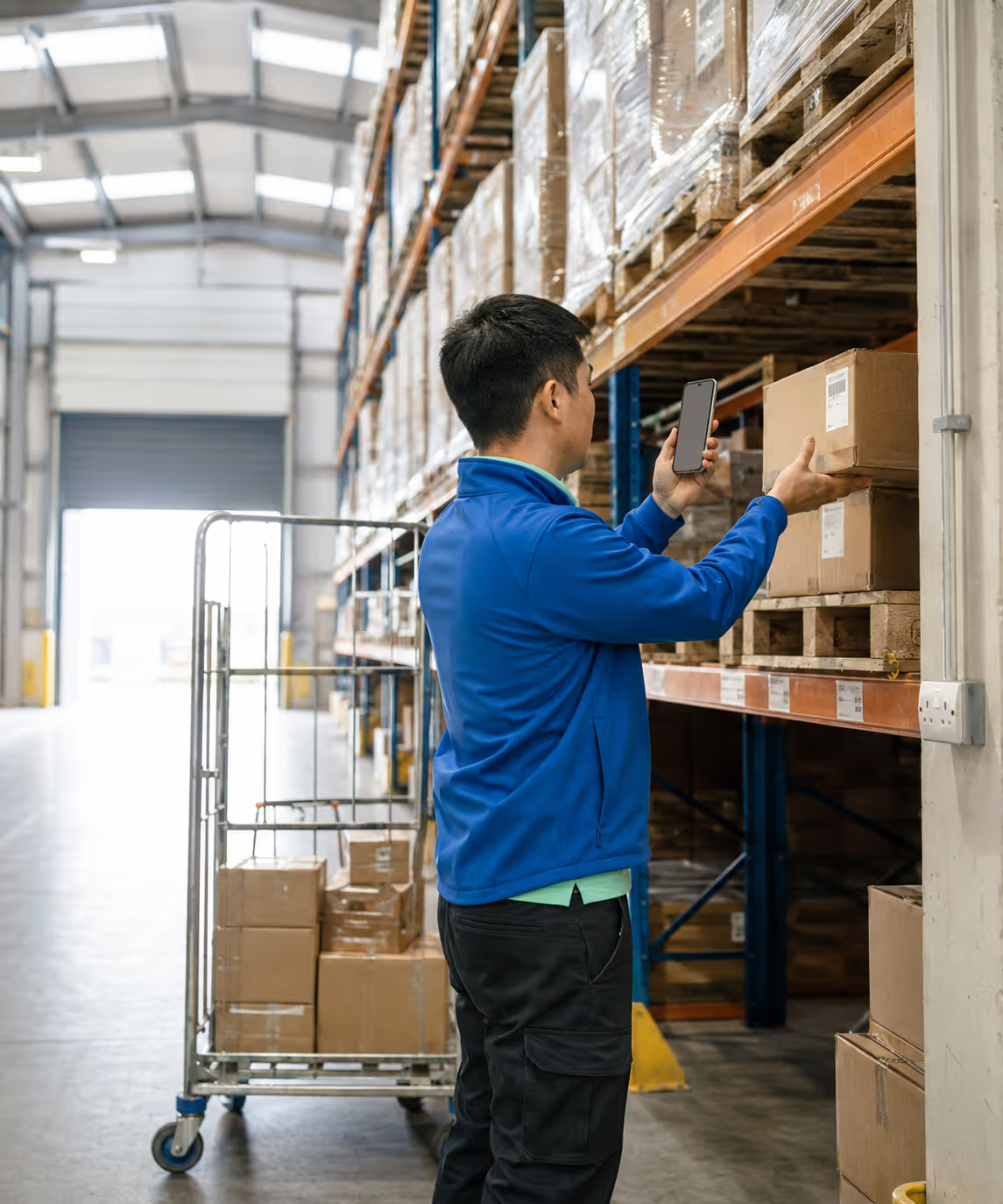
The PICK tab lists the pick orders waiting in the warehouse. Open one to scan or tap each line, with ordered vs picked quantity, mismatch reasons, and batch, expiry, and weight inputs where the product needs them.
The Warehouse App turns a barcode handheld into the tool the depot floor runs on: picking, loading, goods receipt, transfers and blind stock takes, with no separate install to manage.

















One Picker role, every warehouse job, all writing to the same stock ledger the office and drivers work from.
The Picker role swaps the driver’s route home for a warehouse handheld; every action is barcode-first and posts straight to the same stock ledger.
The PICK tab lists the pick orders waiting in the warehouse. Open one to scan or tap each line, with ordered vs picked quantity, mismatch reasons, and batch, expiry, and weight inputs where the product needs them.
On the LOAD tab the picker chooses the route, walks each load order, and scans products onto the vehicle (case, each, or weight) capturing IMEIs for serialised goods and watching a live weight total that flags over-capacity.
The PRCH tab opens supplier purchase orders. Walk the ordered lines, scan or count what physically arrived, note over- and under-deliveries, and book partial receipts with the remaining quantities tracked for next time.
The INV tab books everything that moves without a sale-order pick (supplier deliveries, customer storage receipts, returns into the warehouse, and ad-hoc adjustments tied to a reason) with batch and expiry capture and an approval step.
On the WRHS tab the destination depot sees incoming transfers booked at source. The picker counts what arrived, edits any line where the count differs, captures batch and expiry on tracked items, and approves to post stock into the warehouse.
The STK tab runs counts in blind mode: the expected on-hand figure is hidden so the count can’t be biased. The picker scans and enters each quantity, a supervisor signs off, and the result syncs to the office for variance review.
Scanning populates batch numbers automatically and validates expiry dates at receipt, so traceability is captured at the point of work. Where bin locations are configured, picking can be bin-directed to route staff around the warehouse.
There’s no separate download. The warehouse surface is the same RouteMagic mobile app, switched on by the Picker handheld profile. It works offline-first, writing every count, receipt, and pick locally and syncing when connectivity returns.
Warehouse staff log into the same app as the drivers, but the Picker profile lands them on a six-tab depot layout. Here’s how the day runs. Open any step for the full tab detail.
Bluetooth and built-in barcode scanners, label and report printers & your accounts package, all wired into the same stock ledger.





Need something else? We build custom integrations tailored to your stack.
| Capability | Clipboards, paper & next-day keying | RouteMagic Warehouse App |
|---|---|---|
| Goods receipt | Paper PO checked by hand | Scan against the PO, partial receipts tracked to outstanding |
| Batch & expiry | Written on a clipboard, if at all | Barcode auto-populates batch, expiry validated at receipt |
| Order picking | Printed pick list, no validation | Scan-confirmed picks with mismatch reasons and tones |
| Pick accuracy | Errors found at the doorstep | A wrong scan warns before the box leaves the floor |
| Vehicle loading | Manual tally against a sheet | Scanned load orders, IMEI capture, live weight check |
| Inter-warehouse transfers | Phone calls and paperwork | Destination-side count, variance edits & approval |
| Stock takes | Clipboard with the expected figure visible | Blind count, supervisor sign-off, variance review |
| Serialised goods | Not tracked on the floor | IMEI / serial captured at load |
| Connectivity & accuracy | Paper, then keyed in the next day | Offline-first handheld that syncs automatically |
Answers about the handheld itself. Stock rules, batch traceability and counts are covered on warehouse management.
Yes. It is the same app either way, and what someone sees is decided by their role and handheld profile. Move a person between profiles and the tabs change with them, so a picker who covers a round in the afternoon does not need a second device or a second login.
Not without an admin. A device binds to its user on first login and rejects logins from anyone else until the registration is reset, so a shared handheld cannot be used to blur who counted what.
Every line shows the ordered quantity against the picked quantity, and a mismatch needs a reason before the pick can move on. The variance is on the record rather than discovered by the customer.
Into an append-only ledger. Rows are written once, a correction is a new movement rather than an edit, and balances are calculated from movements, so nobody types a number into a stock figure. Every row links back to the pick, receipt, transfer or count that caused it.
Yes, they are tabs on the same screen. Goods-in, put-away, picking, loading, inter-depot transfers and stock takes all sit in one place, so a picker moves between jobs without changing device or app.
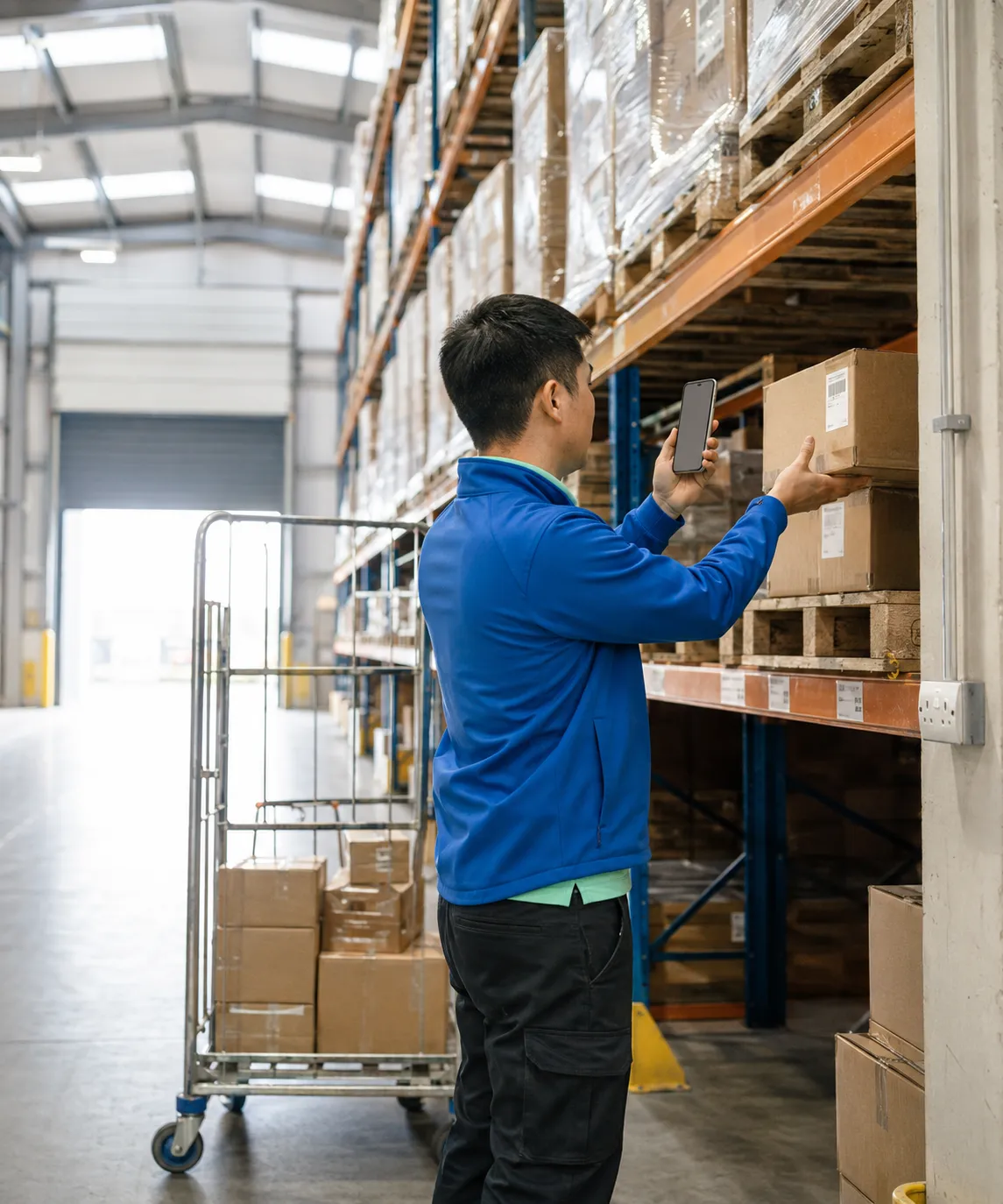
Pick, pack, load, and dispatch with full traceability across the depot.
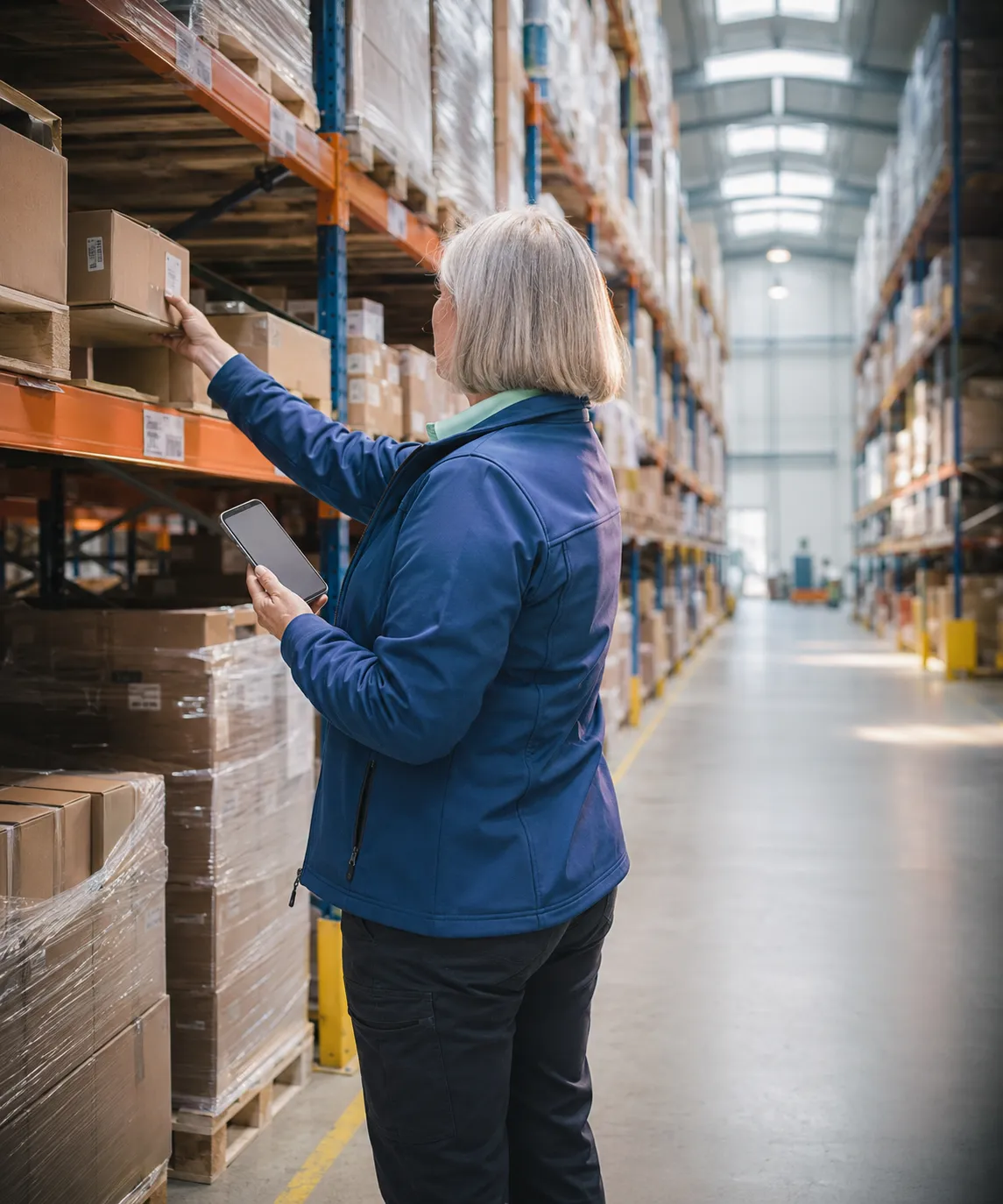
Real-time stock, batches, expiry, and valuation across every warehouse.
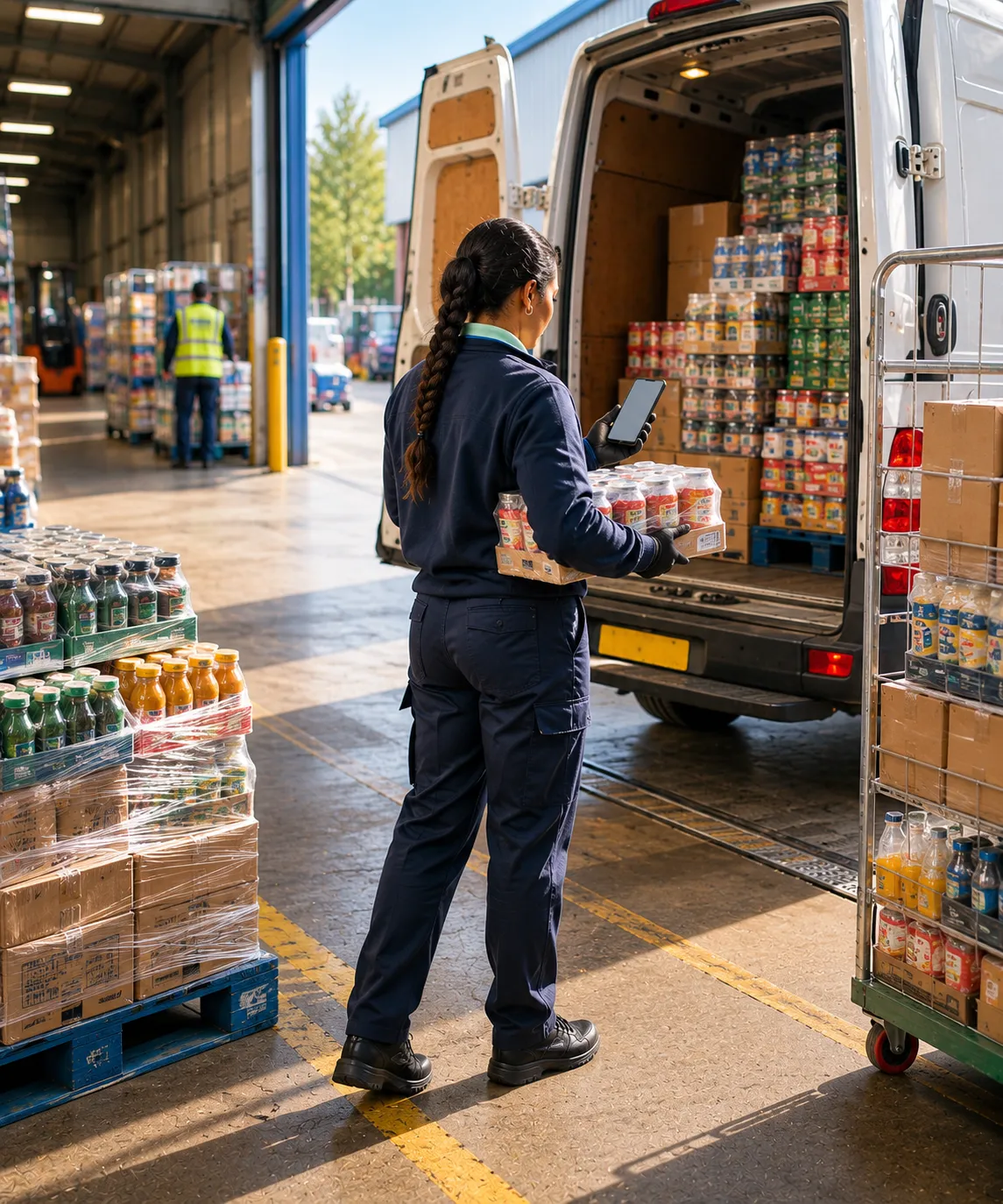
Pre-order, pick, load, deliver, and settle: the flagship route-based model.
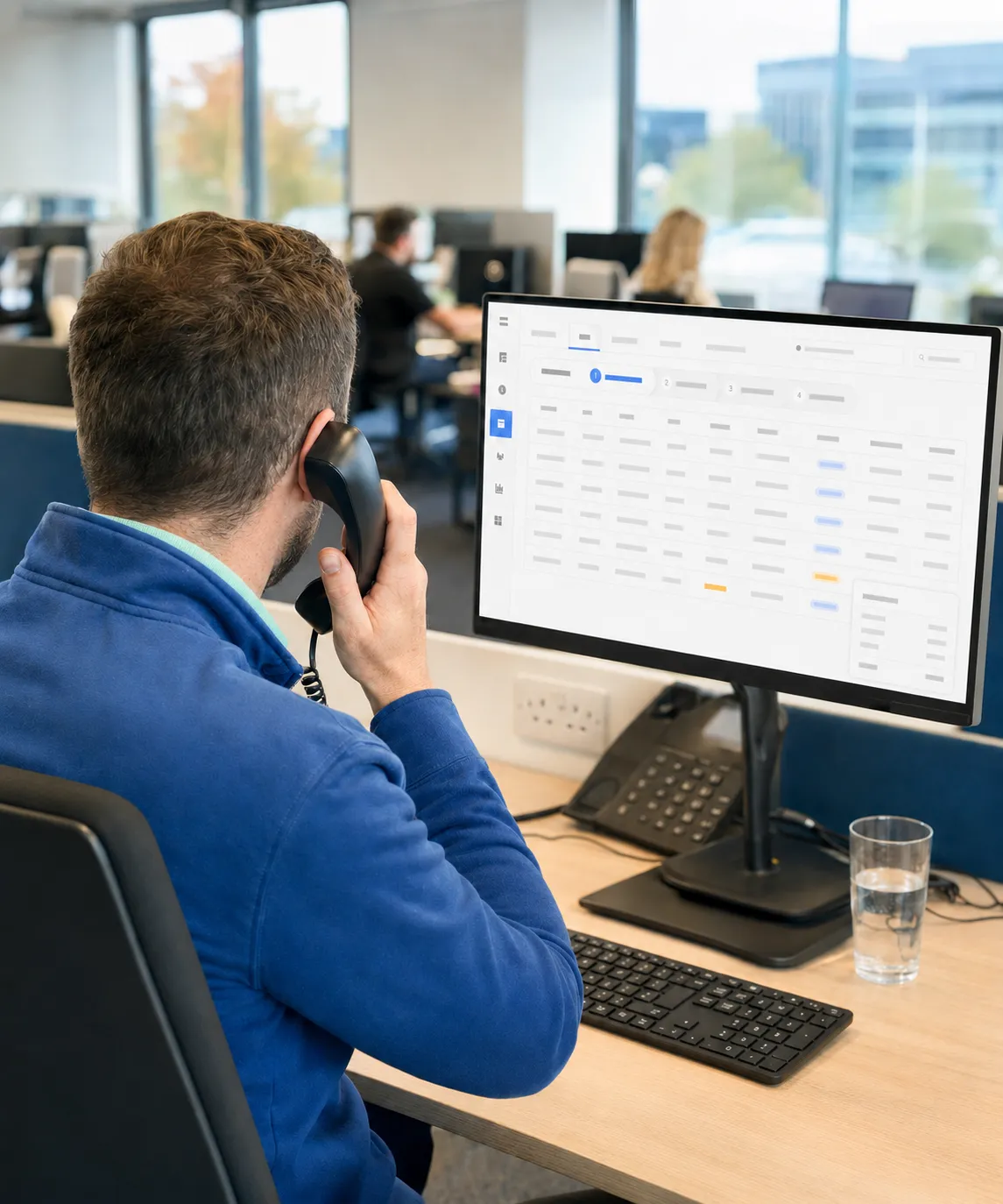
Capture, approve, and fulfil orders that feed straight into the pick floor.
Thank you
Your request has been received.