















RouteMagic POS App

A point of salefor counters, branchesand self-service

Staff till or self-service tablet — picks the account, builds the cart, checks pricing and credit, takes payment, on shared stock.

  • Build the cart, take payment
  • Account pricing and credit at the till
  • Counter till or self-service kiosk
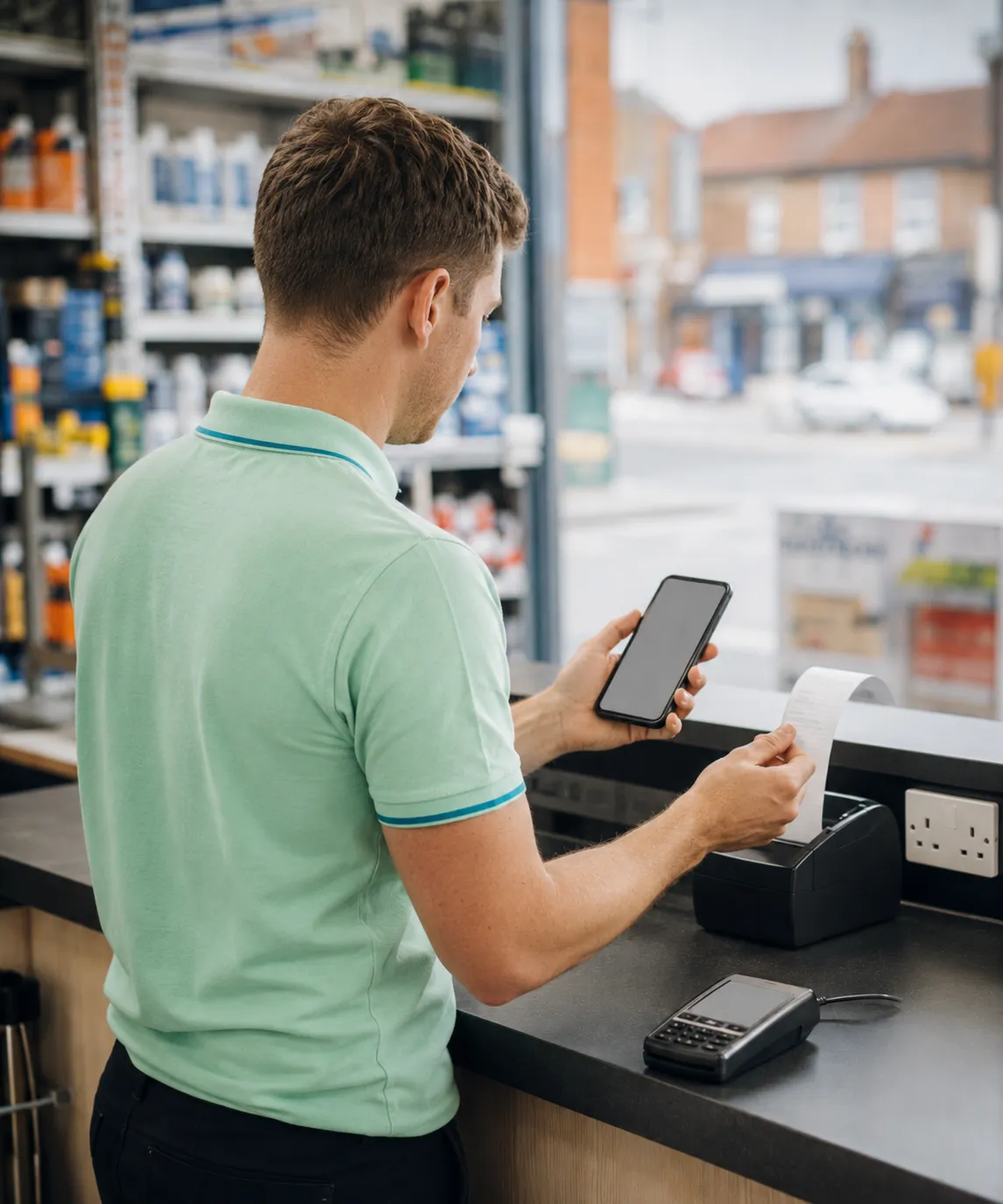
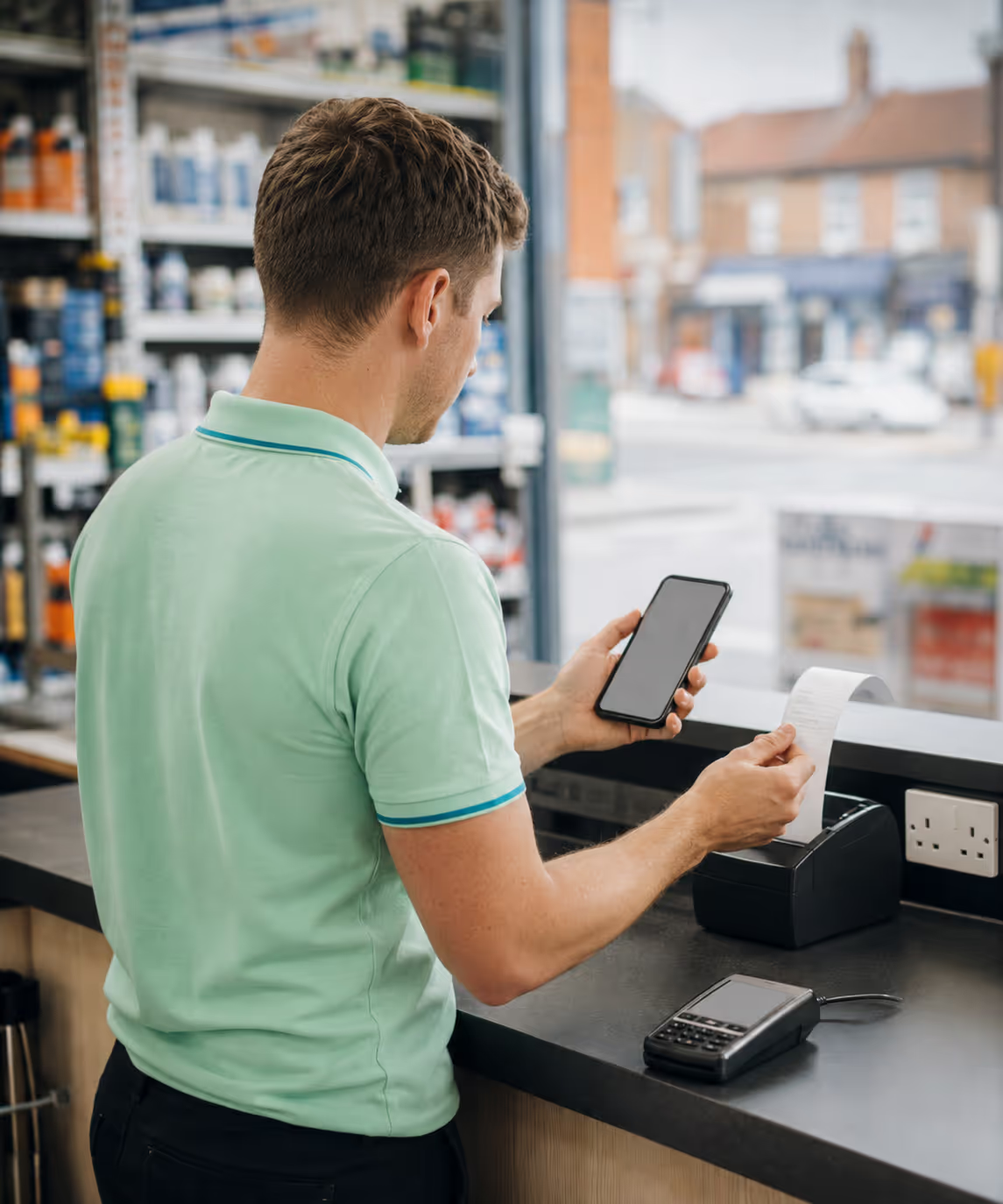
Sales agent taking a trade-counter order on the RouteMagic POS app and printing a receipt.
Our customers

Trusted by businesses across the globe.

Who uses it

Built for selling across the counter.

Two personas, one point of sale — a counter sales screen for staff and a self-service cart for customers, both on the same customer and stock ledger as the rest of the platform.

  • Trade-Counter Sales Agents
  • Cashiers & Till Operators
  • Branch & Depot Staff
  • Event & Pop-Up Sellers
  • End Customers (self-service)
What it does

A full counter till and a self-service cart.

A complete point of sale for the trade counter, with a self-service cart for customers alongside — the user’s role decides which surface they get after sign-in.

Customer & Delivery-Point Selection

Every session starts by picking which customer and which delivery point the order is for. The session locks to that choice until the operator clears it or logs out, so pricing, balance, and history all follow the right account.

Cart Building

Add products by barcode scan, product picker, catalogue, the customer’s sales history, or AI suggestion (sales agents only). Quantities support case, each, or weight, and a delivery-date button moves the order’s scheduled date before checkout.

Checkout & Payment

The order summary shows the cart, VAT, the customer’s running balance, and a credit-limit check. Sales agents pick payment options — cash, cheque, or card with their references — and can split a total across several, then add a reference number and internal notes.

Quotes

Tick Is Quote? at the order summary to capture the cart as a quote rather than an order. POS Quotes lists the quotes taken today for the selected delivery point so the agent can reload one and turn it into a confirmed sale.

Future Orders & Invoice Lookup

Open the customer’s existing future orders to edit them within the amendment cutoff, or pull up one of their invoices read-only to answer a counter query — without leaving the POS session.

Receipts & Printing

Confirming raises a forward order and routes through to the receipt preview, which prints to a Bluetooth thermal printer. From there the agent can switch customer, log out, or start the next order.

Self-Service Kiosk Mode

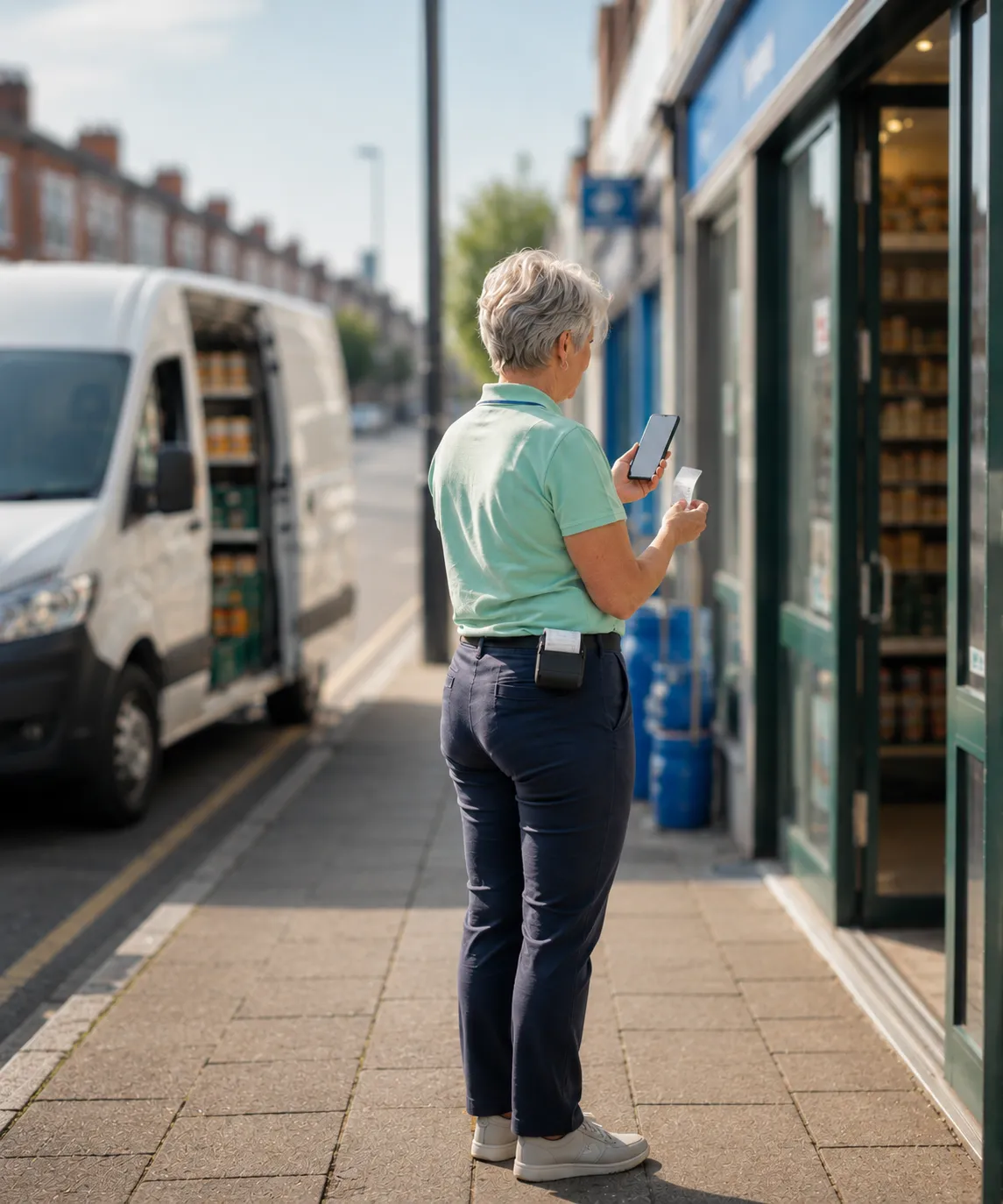
Hand a customer a tablet in-store or at an event and the same screens re-title to a stripped-down cart — Build Cart, Submit Cart — with no payment, print, or switch-customer actions. Their cart submits as a forward order or quote for the office to fulfil.

One App, Role-Gated

There’s no separate POS install. The surface ships inside the one mobile app and is gated by user role, while the parallel Cashier Mode re-skins the regular driver screens for till operation — so a counter, a kiosk, and a van can run the same app side by side.

A counter sale, end-to-end

From sign-in to receipt, then the next customer.

A POS session walks through a small, fixed set of screens. Here’s how a trade-counter sale runs, from sign-in to receipt — open any step for the full screen detail.

  1. 01

    Sign in at the till

    The role sets the screen — agent or self-service.

    POS is gated by user role and lands on its own set of screens: a Sales Agent gets the counter sales surface, an End Customer account a stripped-down self-service cart. A parallel Cashier Mode — toggled per handheld profile — re-skins the regular driver site-visit screens for till operation (Route becomes Till, Van Sales becomes Store Sales, and so on) and adds a Swap Customer action for walk-ins. The surfaces are independent and can coexist on different devices, so a trade counter, a self-service kiosk and a delivery van all run from the one install.

  2. 02

    Pick the customer & delivery point

    Lock the session to one customer and delivery point.

    Every POS session opens by picking the customer and delivery point the order is for, and the session holds that selection until the operator clears it or logs out. That anchor is what lets the rest of the flow apply the right price list, show the right running balance, run the credit-limit check and pull the right sales history — POS isn’t an anonymous till, it’s always selling to a known account on the shared customer ledger.

  3. 03

    Build the cart

    Add by scan, catalogue, history, or AI suggestion.

    POS Home is the cart for one sale. The agent adds products by scan, picker, catalogue, the customer’s sales history or an AI suggestion, each line carrying a case/each split for double-unit products and a weight for catch-weight goods, with a delivery-date button to move the scheduled date before checkout. Pricing comes from the customer’s price list — unit prices aren’t edited here. Counter queries stay on the one device too: POS Customer Future Orders lists the customer’s future-dated orders for editing within the amendment cutoff, and POS Customer Invoice opens a past invoice read-only to answer a “what did we charge last time?” question without switching apps.

  4. 04

    Review, check & take payment

    Check VAT and credit, split payment, or save a quote.

    The Order Summary is the review-and-confirm screen — the cart in tabular form, totals with VAT, the running balance and a credit-limit check, with lines read-only so quantity changes go back to POS Home. Agents pick payment options, each toggling an amount field and any reference it needs (cheque number, card or bank reference), and a total can split across several. An optional reference number — its label configurable, and mandatory for some delivery points — and internal notes can be added. With quote management enabled, the Is Quote? tick saves the cart as a quote instead, mirroring the back-office quotation lifecycle so a counter quote and an office quote are the same record; a company minimum-order-value setting can block confirm below a threshold.

  5. 05

    Confirm & print the receipt

    Raise the order and print to a thermal printer.

    After confirm, the Print View is the receipt preview. It prints to an ESC/POS Bluetooth thermal printer and offers switch-customer, log-out and add-new-order actions, and the order flows to the back office to be fulfilled like any other forward order.

  6. 06

    Switch customer & serve the next

    Switch customer and serve the next in line.

    From the receipt the agent switches customer or starts a new order and serves the next person. When the tenant hands a tablet to a customer — in-store or at an event — an End Customer account lands on the same screens re-titled for self-service (“Ordering App: Build Cart” / “Submit Cart”), with no payment section, no receipt print and no switch-customer action: the cart simply submits as a forward order or quote for the office to fulfil later, turning the POS surface into a customer-facing kiosk with no extra build.

Integrations

Works with the kit on the counter.

Bluetooth thermal printers, barcode scanners, card and digital payments & your accounts package — sharing the customers, pricing and stock of the wider platform.

Need something else? We build custom integrations tailored to your stack.

Versus the status quo

RouteMagic POS App vs. a standalone till.

Capability A separate POS terminal RouteMagic POS App
Install Separate POS software & hardware The same mobile app, gated by role — no extra install
Customer data Re-keyed or kept apart from the office Picks the customer & delivery point from the shared ledger
Pricing Generic or manually keyed The customer’s own price list applied automatically
Credit control Not checked at the till Running balance & credit-limit check at checkout
Adding products Type SKUs or look them up Scan, picker, catalogue, history, or AI suggestion
Quotes & future orders A separate process, if any Captured, reloaded, and edited in the same session
Receipts Standalone receipt printer Bluetooth thermal receipt, then switch customer
Self-service Not possible Hand-out tablet / kiosk cart submits as order or quote
Fulfilment A POS island, re-entered later The cart becomes a forward order the office fulfils
Take the next step

Ready to see it in action?

  • No sales pitch
  • 30 minutes
  • We’ll ask about your business first
Working with RouteMagic

Thank you

Your request has been received.

Book a demo