
Self-Service Web Ordering
Invited customers log in through a browser and place orders themselves, any time: no phone call to the office, no waiting for the next van visit. Orders are subject to their credit limit and the order cut-off time.
The Client Portal is a self-service site for trade customers, branded as yours. They order, reorder, check statements and pay invoices, and each order joins the round it belongs on.


















A self-service channel for the business customers who order from you again and again, on the same catalogue, pricing, and routes as the rest of the platform.
Everything a trade customer needs to order and manage their account online, drawing on the same catalogue, pricing, and credit rules the back office runs on.
Invited customers log in through a browser and place orders themselves, any time: no phone call to the office, no waiting for the next van visit. Orders are subject to their credit limit and the order cut-off time.
The portal shows the distributor’s catalogue with each customer’s own price list, delivery rules, and product whitelists, all following the same back-office configuration, so the portal never overrides what the office set.
Customers see their full order history across every channel (portal, telesales, van sales), drill into any order for lines, delivered and returned quantities, and PDF invoices and delivery notes, then reorder from any of them in a click.
A customer-facing statement shows their invoices and payments as a running ledger. Customers can view and download invoices for completed orders and pay outstanding balances online through your configured gateway.
Customers manage their own delivery addresses and ordering preferences from the portal, keeping their details current without the office having to make every change for them.
Customers can’t self-sign-up. The office invites them from the Customer list with an Invite Customers to Client Portal action, and they log in with credentials tied to their existing customer record. Controlled activation, every time.
Portal orders arrive as Client Sale Orders for the office to approve, edit, or reject, running the same pricing, credit, and minimum-order checks as any order. A rejection carries a reason the customer sees, and stock is only committed on approval.
The portal carries your logo, colours, and domain, so customers order on your brand rather than a generic marketplace. Portal orders are tagged Source = Client Portal so the office can tell them apart from telesales, van sales, and EDI.
A portal order joins the same pipeline as every other order, with one review step before it hits the plan. Here’s how one moves through. Open any step for the full module detail.
Online payment gateways for invoice settlement, plus the same catalogue, pricing, credit & routing as every other ordering channel.





Need something else? We build custom integrations tailored to your stack.
| Capability | Phone, email & telesales | RouteMagic Client Portal |
|---|---|---|
| Ordering channel | Phoned or emailed in, office hours only | 24/7 self-service in a branded web portal |
| Order entry | Re-keyed by telesales from a call | Lands directly as a Client Sale Order |
| Pricing | Quoted over the phone, easy to slip | The customer’s own price list, shown in the portal |
| Order accuracy | Mis-heard or transcribed wrong | The customer enters it themselves |
| Approval & control | Implicit, hard to audit | Office approves with credit & cut-off checks, reject with reason |
| Invoices & payment | Emailed and chased for weeks | View, download & pay online from a statement |
| Reorders | Recite the same list every time | One-click reorder from any past order |
| Order visibility | “Did my order go through?” | Order status & history in the portal |
| Brand | No customer-facing presence | Branded to you, on your own domain |
Answers about the portal itself. The order pipeline behind it is covered on order management.
No, and that is deliberate. You invite them from their record in the back office, so every portal user is already a customer with agreed terms, a price list and a credit limit. A trade portal that anyone can join cannot enforce any of that.
The reason you give. Rejections carry a note that appears on the customer’s own portal, so they know whether it was a credit hold, a stock issue or a line that needed changing, rather than ringing your office to find out.
Only what you have decided they should. Product lists, whitelists and their own price list all follow the same back-office configuration as telesales, so a customer never sees a line they are not meant to buy or a price meant for someone else.
Yes. Their statement shows invoices and payments as a running ledger with what is outstanding and how old it is, and they can download invoices and delivery notes themselves. It takes a whole category of calls off your accounts team.
Yes. Your logo, your colours and your domain, so customers order on your brand rather than something that looks like a supplier’s marketplace.

The B2B route-based core that fulfils every portal order.
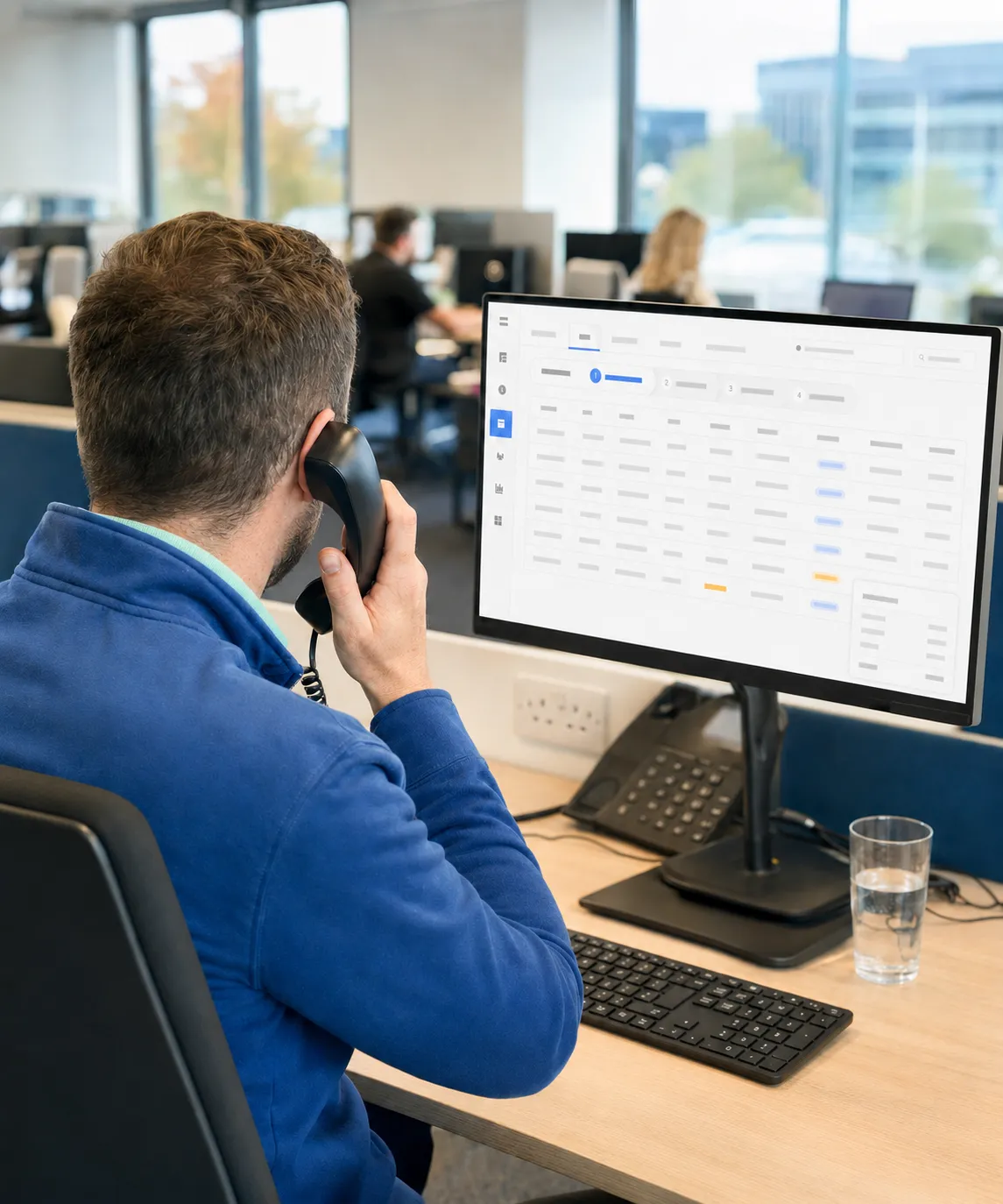
Capture, approve, and fulfil orders from every channel in one place.
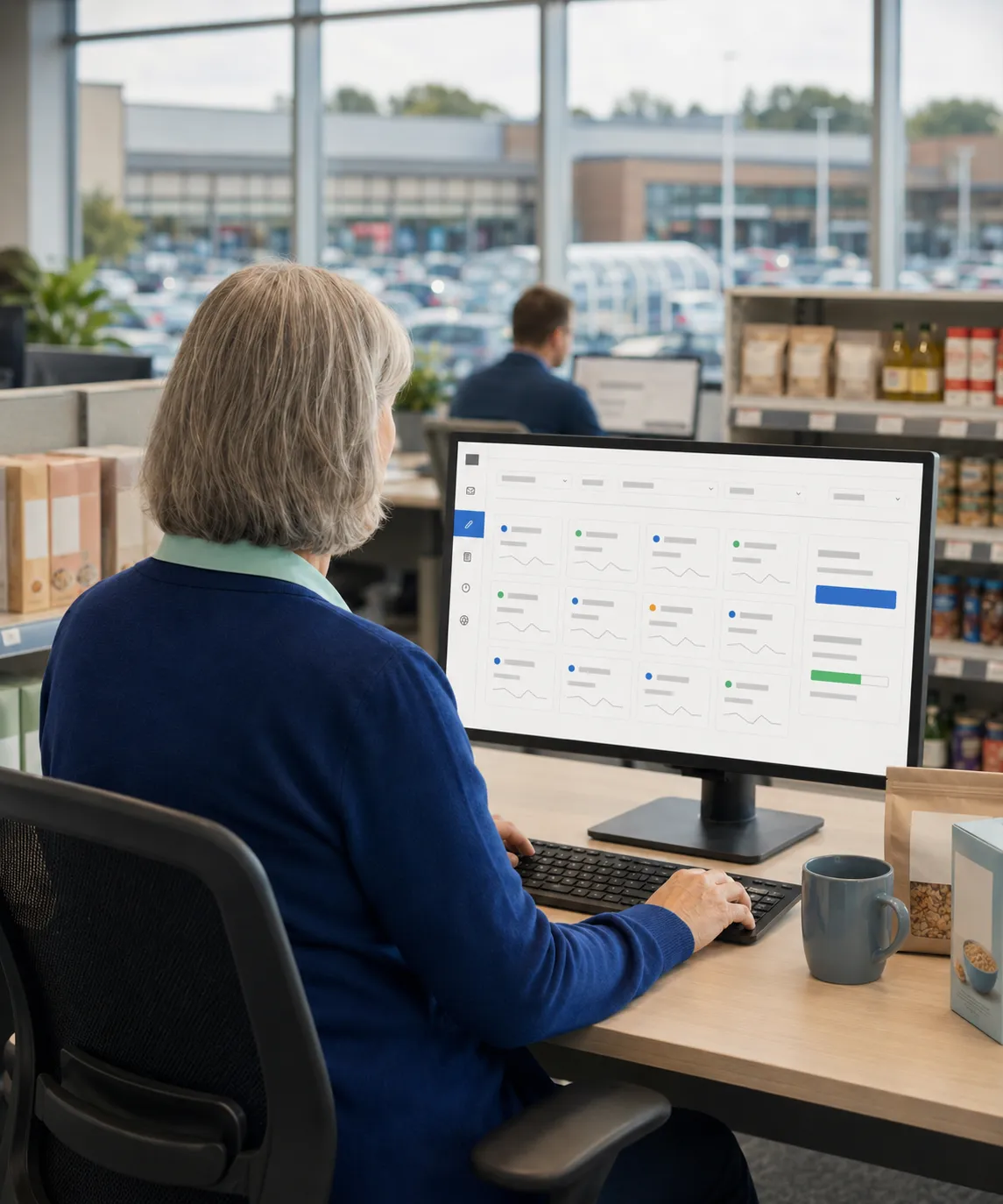
One live customer record, balance and pricelist behind every portal login.

The consumer-facing sibling for selling direct to end customers.
Thank you
Your request has been received.